8.15 Solution AddOns
With the help of Solution AddOns, which your platform administrator has released for you, you can book and install AddOns such as Swyx VisualGroups, MS Teams Sync, Live Metrics and others for your UC Tenant via SwyxON.
Requirements:
 The platform administrator must approve the desired Solution Add-on for the partner account.As a partner, you must install the Solution AddOn on the desired UC tenants for a fee. How to book and install Solution AddOns for a UC Tenant.
For Operator UC Tenants, Solution AddOns are ordered via Operator. You have to install or uninstall the ordered Solution AddOns via SwyxOn.
For information on Swyx Analytics by aurenz see aurenz.de/en/products/swyx-edition.html.
For information about Swyx VisualGroups see help.enreach.com/visualgroups/latest.version/web/Swyx/en-US/index.html.
SwyxONLive Metrics
SwyxON Live Metrics is a Solution AddOn that provides a Prometheus Metrics endpoint for UC tenants. It publishes part of the Swyx performance indicators in Prometheus Metrics format. After provisioning, the UC Tenant provides a new TCP port via which customers can retrieve the metrics using HTTP GET requests. The endpoint is only available via HTTPS and requires authentication.
For example, you can use Grafana to query the data stored in the database and visualize it on a dashboard.
How to book and install Solution AddOns for a UC Tenant
 The list of your UC Tenants appears.A list appears with all of your Feature Profiles.A list appears with Your Solution AddOns.
|
Label
|
Explanation
|
|---|---|
|
Name
|
Name of the Solution AddOn created.
|
|
Description
|
Description for the Solution AddOn.
|
|
Software version
|
Shows the software version of the Solution AddOn.
|
|
URLs
|
Shows the end point at which the Solution AddOn can be reached via the Internet.
|
|
Active
|
indicates that the corresponding Solution AddOn is activated and can be installed for the UC Tenant.
|
|
Installed
|
indicates that the corresponding Solution AddOn is installed for the selected tenant.
|
For Operator UC Tenants the settings (except for Version) are preconfigured in Operator and cannot be changed in Swyx Control Center.
|
Label
|
Explanation
|
|---|---|
|
Name
|
Name of the Solution AddOn
|
|
Description
|
A brief description of the functionality (optional)
|
|
Installed Version
(visible only for partner administration)
|
Shows the version of the Solution AddOn installed on the UC Tenant.
|
|
Platform standard
(visible only for Partner Administrators)
|
Displays the version of the Solution AddOn released by the platform administrator.
If the Installed Version is different from the Platform Standard version, the button Update. |
|
Version
(visible only for platform administrators)
|
Shows the version of the Solution AddOn.
A platform administrator can select the version of the Solution AddOn specific to the UC Tenant from the drop-down list. A version update selected here becomes effective immediately after confirmation for the UC Tenant.
|
|
User name (only for Live Metrics)
|
To protect access to the measurement data of the Swyx installation, you must create authentication data.
|
|
User name (only for Live Metrics)
|
|
|
Licenses
|
Select the desired license from the drop-down list and specify the desired number of licenses.
|
The booking of Solution AddOn licenses incurs costs. Version changes can also cause costs. If you confirm your entries in the next step, an update is carried out immediately. If necessary, the tenant is automatically restarted.
The Solution AddOn is installed for the selected UC Tenant. The installation process takes a few minutes. The partner administration can set up the AddOn (via Remote Admin Connector) for the Tenant after the installation is complete.To access the administration of your Solution AddOns
You can access the web portal of your Solution AddOn Via VPN connection via browser page or Via Remote Admin Connector.
Via VPN connection
|
Solution AddOn
|
Admin page
|
|---|---|
|
Swyx VisualGroups
|
http://<Server-IP>/visualgroups/adminvg.aspx
|
|
Swyx Analytics by aurenz
|
https://<Server-IP>:10443 or
http://<Server-IP>:10081
|
|
SwyxON Live Metrics
|
https://<EndpointAddress:Port>/metrics
|
Note that with Swyx Analytics by aurenz, the first time you log in with the username "superuser" without a password. You will then be prompted to specify a SwyxWare Administrator account. Here it makes sense to create a separate Aurenz administration account via the SwyxControlCenter and to store this account for retrieving the CDR data in Aurenz. This ensures a permanent function of Swyx Analytics. For this newly created Aurenz management account, the UPN (username@company.com) must be specified within Aurenz.
Via Remote Admin Connector
The Remote Admin Connector for SwyxIt! is a remote access tool that is automatically installed during the SwyxON installation.
|
Solution AddOn
|
Admin page
|
|---|---|
|
Swyx VisualGroups
|
http://127.0.01:9980/visualgroups/adminvg.aspx
|
|
Swyx Analytics by aurenz
|
https://127.0.0.1:10443/ or
http://127.0.01:10081/
|
|
SwyxON Live Metrics
|
https://<EndpointAddress:Port>/metrics
|
For the administration of the Solution AddOns via Remote Admin Connector a firewall rule for the used ports is required.
Please note that with Swyx Analytics by aurenz the login of the first query is done with the username "superuser" without password. Then log in with your administrator data via UPN (user.name@company.com).
To check the installation of SwyxON Live Metrics
Before you set up Grafana, you should make sure that the metrics can be queried.
The Solution AddOn creates a port mapping from the outside (random TCP port) to the internal TCP port 9182 for the Windows Exporter service.
After the Solution AddOn has been installed, the corresponding endpoint <EndpoingAddress:Port> appears in the URLs column in the Solution AddOns list.
E.g.: rcfg01.dev.engineering:20004 (tcp)
The measurement data for the Swyx installation appears. The Solution AddOn has been successfully installed.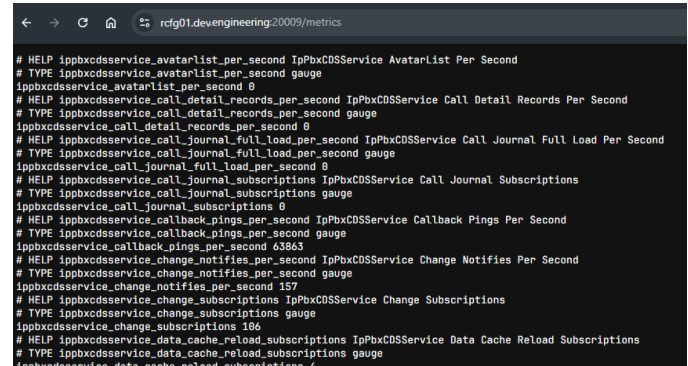
To uninstall a Solution AddOn for a UC Tenant
Uninstallation is also possible if the Solution AddOn has been deactivated by the platform administrator.
When you uninstall the Solution AddOn, the databases associated with the AddOn are also deleted. Please also note that the UC Tenant may restart automatically.