3 Sign In - First steps
If Enreach Contact is not already set up for you on your iPhone/iPad, please download the application from the App Store.
If you have received an e-mail from your administrator, a link to the operator will take you to the option of assigning a new password.

Enreach Contact is a VoIP solution. You must be connected to the Internet to start and receive calls.

When saving and processing personal data, observe the respective applicable legal data protection regulations. If you have any questions regarding data protection, please contact your administrator.
Personal data cannot be deleted automatically. In order to meet the valid data protection regulations, it may be necessary to delete the entries manually.
To sign in for the first time
 The login page appears.You are logged on to Enreach Contact.
With the (iCloud) Keychain or a third-party password manager, you can use the feature AutoFill Passwords to log in to Enreach Contact.
To sign in using a password manager
1 On your homescreen, tap  .
.
.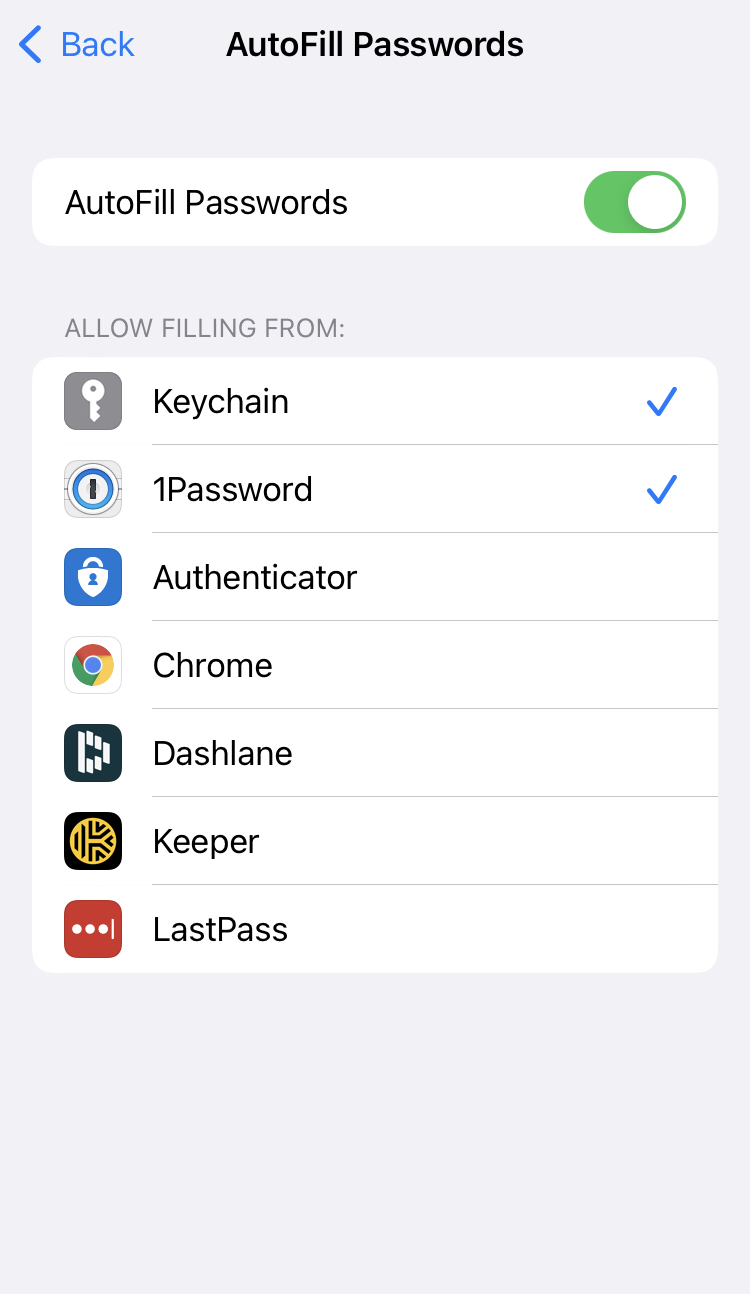 The dialer opens.You are logged on to Enreach Contact.
 You can only use AutoFill Passwords if you have stored credentials in a password manager. You can also only select two password managers from your list: the (iCloud) Keychain and/or a third-party passwort manager.