4.1 My Profile
In the My Profile section, you can see your name, your phone number and your email address, add further telephone numbers to your profile and change your profile picture, your job title and status (see also 6.1 Own status).
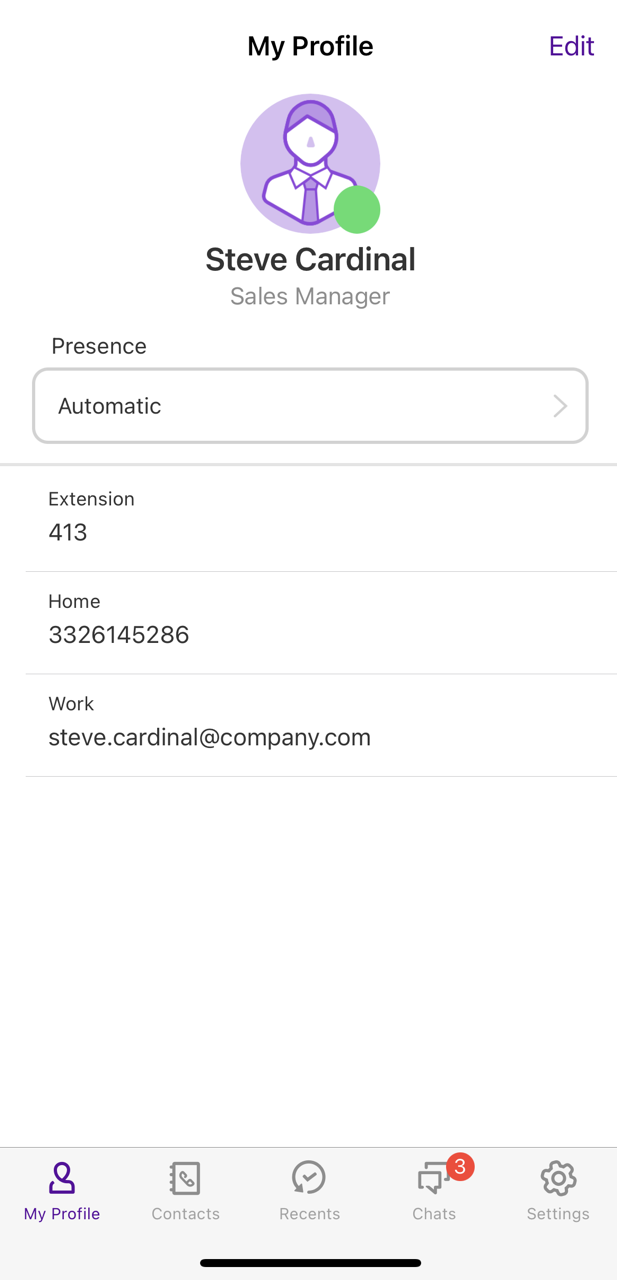
To change your profile picture
 Delete PhotoTake a PhotoChoose PhotoBrowseUse Memoji or Emoji
To take photos or use photos from the gallery you need to allow Enreach Contact to access photos, media and other files if necessary.

When saving and processing personal data, observe the respective applicable legal data protection regulations. If you have any questions regarding data protection, please contact your administrator.
Personal data cannot be deleted automatically. In order to meet the valid data protection regulations, it may be necessary to delete the entries manually.
To add a job position
 The job title is visible to your contacts on your profile.
To add a phone number
The Phone number is visible to your contacts on your profile.To add a E-mail address
The email address is visible to your contacts on your profile.