5.7 Notes
During a conversation, you can create notes that can serve as a memo or to-do list. They appear within the conversation in which they were created and are visible only for you.
To display notes
 The dashboard opens.The list opens and the notes are displayed with their processing status: New for unprocessed notes and Done for processed notes.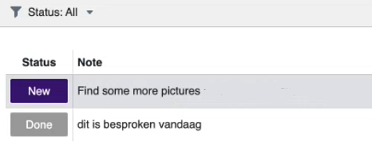
Click on the drop-down menu next to  to filter the notes according to their processing status.
to filter the notes according to their processing status.To create a note
1 Click  in the tab with the conversation details.
in the tab with the conversation details.A pop-up window with several options opens.A pop-up window opens where you can create the note.3 Type your message and click  .
.
.The note is created and displayed in the opened conversation.To manage a note
The dashboard opens.The created notes are displayed.The note opens and you can see the details and processing options.Go to conversation | Go to conversation Click on this button to open the conversation where you created the note. |
Go to contact | Go to contact Click on this button to open the information of the contact for whom you have created the note. |
Mark as done | Mark as done You can mark a note as done when it has been processed. |
Unmark as done | Unmark as done This button is displayed when a note is already marked as done. You can undo this and process the note later. |
Delete | Delete Click on the Delete button to delete the note. |
To mark a note as done
The created notes are displayed.The note opens and you can see the details and processing options.The note is shown with a strikethrough in the open conversation.Under Notes, the status is changed from New to Done.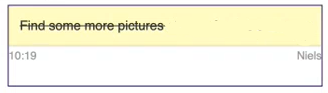
To unmark as done
The created notes are displayed.The note opens and you can see the details and processing options.The note is again displayed in the opened conversation without strikethrough.Under Notes, the status is changed from Done to New.To delete a note
The created notes are displayed.The note opens and you can see the details and processing options.3 Click on  .
.
.A pop-up window in which you have to confirm the operation opens. 4 Click on  .
.
.The note is deleted.